![Slasify_Logo_Black 1.svg]](https://support.slasify.com/hubfs/Slasify_Logo_Black%201.svg)
Index
How to Approve or Reject a Timesheet Record
How to Download Timesheet Records
How to Set Buffer Time for Overtime Detection
Viewing Timesheet Records
Understanding the Timesheet List Page
This section explains all fields displayed on the Timesheet List Page from the perspective as the End Client, including the search toolbar and the table columns for both Timesheet and Overtime data.
Please make sure you switch your project to “Manager” persepctive.
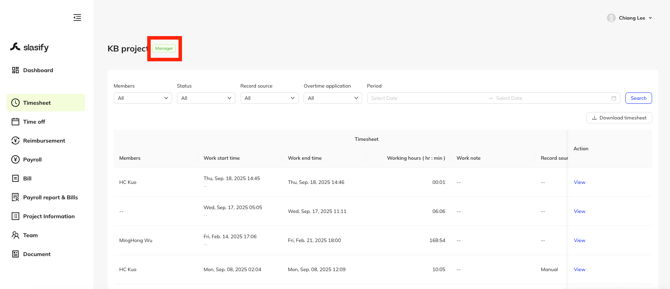
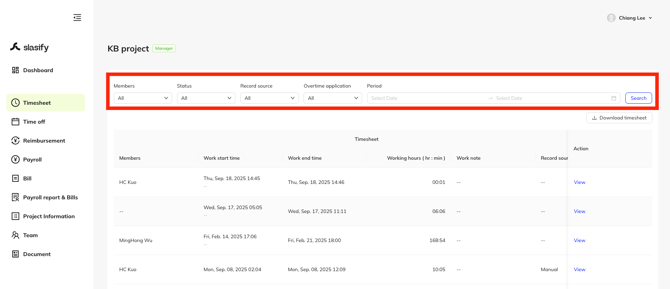
1. Search Toolbar Overview
Before viewing the records, you may filter entries using the search toolbar. The available filters include:
-
Members – Filter by project member name.
-
Status – Filter by approval status.
-
Record Source – Filter by whether the record comes from clock in/out or manual entry.
-
Overtime Application – Filter by whether overtime is applied for.
-
Period – Select a date range to view timesheet entries within a specific period.
2. Timesheet Table – Field Definitions
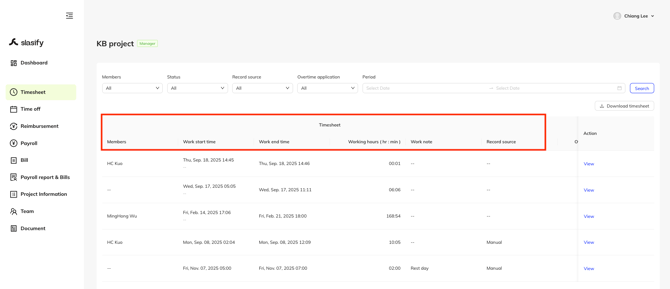
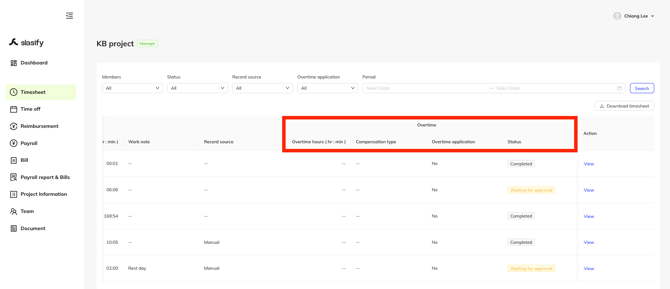
The timesheet list contains two major column groups: Timesheet and Overtime, plus an Action column.
A. Timesheet
1. Members
Displays the project member’s name associated with this timesheet entry.
2. Work Start Time
The timestamp indicating when the employee started work for that day or shift.
3. Work End Time
The timestamp indicating when the employee ended work for that day or shift.
4. Working Hours (hr:min)
Shows the total number of hours worked, automatically calculated from the start and end times.
5. Work Note
A note entered by the employee when clocking out.
This may include work details, remarks, or reasons for adjustments.
6. Record Source
Indicates how the timesheet record was created:
-
Clock – The record comes from the employee’s clock in/out action.
-
Manual – The record was manually submitted by the employee, such as a missed clock-in correction or manual work-hour entry.
B. Overtime
1. Overtime Hours (hr:min)
Displays the number of hours that qualify as overtime based on the company’s overtime rules.
2. Compensation Type
Specifies how the overtime hours will be compensated:
-
Overtime Pay – Overtime is compensated with additional wage.
-
Compensatory Leave – Overtime is converted to time-off credits.
3. Overtime Application
Indicates whether the employee has submitted an overtime application:
-
Y – Yes (submitted).
-
N – No (no application submitted).
4. Status
Shows the current status of the overtime application:
Examples:
-
Completed – The timesheet data has been finalized.
-
If employees need to apply for overtime, they may submit the overtime application.
-
-
Waiting for approval – Pending manager review.
-
Rejected – Application was not approved. Employee can resubmit this overtime and timesheet data.
-
Approved – Application was approved and finalized.
C. Action
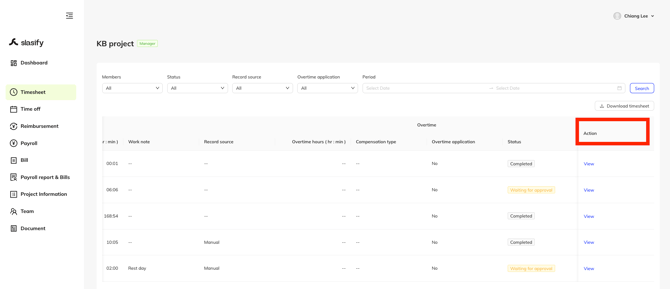
Clicking View opens the detailed timesheet record page, where managers can:
-
View complete details
-
Review and approve/reject related overtime requests
How to Approve or Reject a Timesheet Record
This guide explains how you as the End Client (or those authorized as project managers) can review and take action on an individual timesheet record in the Detailed Timesheet Record Page.
The focus is on the two key review operations:
-
Approving a timesheet record
-
Rejecting a timesheet record
1. Accessing the Detailed Timesheet Record Page
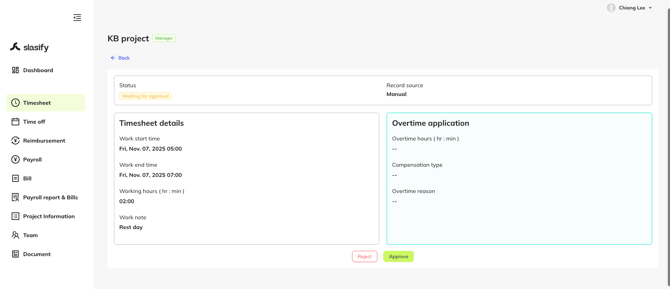
From the Timesheet List Page, click View on any record to open its detailed view.
Here, you will see:
-
Member’s Name
-
Record Source
-
Current Status
-
Timesheet Details (work start time, end time, total hours, work note)
-
Overtime Application Information (if applicable)
These sections help the reviewer evaluate the validity of the entry before deciding to approve or reject it.
2. How to Approve a Timesheet Record
Approving confirms that the timesheet entry in the status “waiting for approval” is correct and requires no further modification.
A. Steps to Approve
-
Review the Timesheet Details on the left side:
-
Work start and end time
-
Total working hours
-
Work note
-
-
Review the Overtime Application (if applicable):
-
Overtime hours
-
Compensation type
-
Overtime reason
-
-
Ensure that all information is accurate and valid.
-
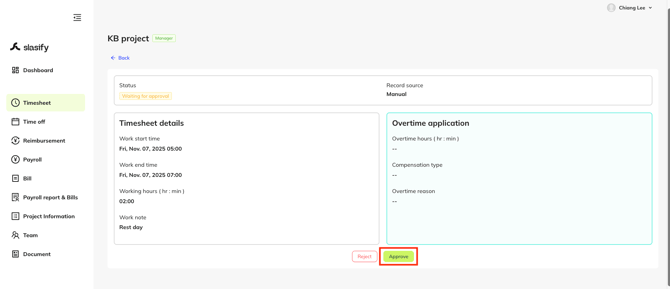
Click the Approve button located at the bottom right of the page.
-
The system will update the status to Approved, indicating that the review process is finished.
B. Outcome
-
The employee’s timesheet record is confirmed as approved.
-
No further action is required unless corrections are requested later.
3. How to Reject a Timesheet Record
Rejecting should be used when the timesheet entry is in the status “waiting for approval” and contains incorrect, incomplete, or unclear information.
A. Steps to Reject
-
Review the timesheet data as described above.
-
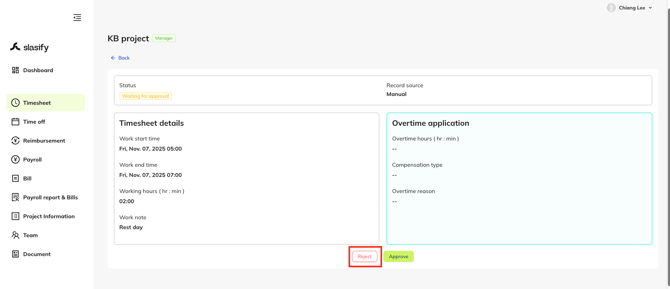
If the record needs correction, click the Reject button at the bottom of the page.
-
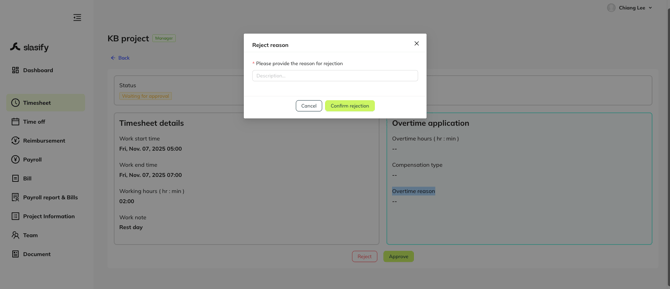
A Reject Reason modal window will appear.
-
In the modal:
-
Enter the required explanation under Description.
-
This reason will be visible to the employee so they know what to revise.
-
-
-
Click Confirm rejection to submit the decision.
-
The system will update the status to Rejected.
B. Outcome
-
The employee is notified of the rejection and the reason provided.
-
The employee must revise and resubmit the timesheet or take corrective actions.
How to Download Timesheet Records
This guide explains how you as the End Client (or those authorized as project managers and admins) can download timesheet records from the Timesheet List Page.
The downloaded file allows you to review, archive, or process work-hour data outside the Slasify system.
1. Access the Timesheet List Page
-
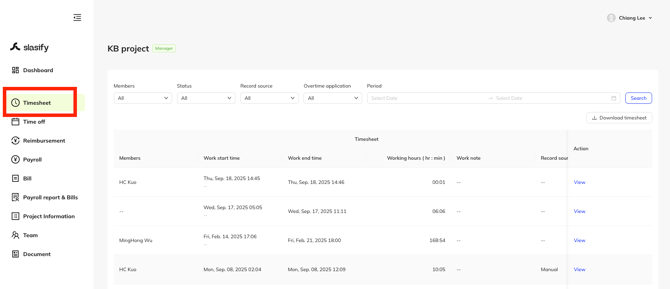
Navigate to the Timesheet section from the left-hand menu.
-
The system will display the Timesheet List Page, including search filters and the full list of timesheet entries.
2. (Optional) Apply Search Filters Before Downloading
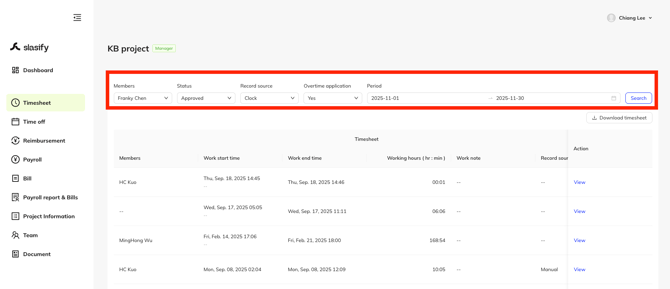
You may filter the data before downloading to obtain only the specific records you need. Available filters include:
-
Members
-
Status
-
Record Source
-
Overtime Application
-
Date Period
Steps
-
Select your preferred criteria from the drop-down filters.
-
Set a date range if needed.
-
Click Search to update the list.
The system will only include the filtered results in your download file.
3. Download the Timesheet Records
Once the list displays the information you need:
Steps
-
Locate the Download timesheet button found at the upper-right area of the list section.

-
Click the button to start the download process.
-
The system will generate and download a file containing the timesheet data shown on the page.
⚠️Only the user having “Human Resource” or “Project Admin” can see and use “Download timesheet” button. If you can not see this button, please check your role in the “Team” page.
How to Set Buffer Time for Overtime Detection
Why Buffer Time Is Needed
When employees record working hours using clock-in and clock-out, the calculated total may slightly exceed the daily required working hours.
In some jurisdictions, small amounts of excess working time are legally allowed and are not considered overtime. If the laws governing your employment contracts permit this, you can set a buffer time to prevent these minor overages from triggering the overtime application process.
1. How Buffer Time Works
If an employee’s actual working hours (calculated from clock-in time to clock-out time) exceed the sum of:
-
Daily required working hours, and
-
Buffer time (in minutes)
then the system will treat this record as overtime, and the employee will be prompted to submit an overtime application.
In other words:
Actual working hours > Daily required working hours + Buffer time → Overtime notification triggered
2. How to Set Buffer Time
Follow the steps below to configure the buffer time:
-
Go to the Timesheet page.
-
Click the Clock-In Settings button to open the settings window.
-
In the popup window, enter the buffer time value (unit: minutes).
-
Click Update to save the settings.

3. How to Set Daily Required Working Hours
The daily required working hours determine the default number of hours an employee should work per day. The buffer time is added on top of this value when calculating whether overtime should be triggered.
Follow the steps below to configure the daily required working hours:
-
Go to the Time Off page.
-
Click the Settings tab.
-
Input the value for Daily required working hours in the upper-right section (unit: hours).
-
Click Set info to save your configuration.

Thank you & stay well
Slasify Team
Last Updated: 2025.11.28 (v1.102.0)