![Slasify_Logo_Black 1.svg]](https://support.slasify.com/hubfs/Slasify_Logo_Black%201.svg)
Index
Clock In/Out and Overtime Application
Manual Working Hours Application
Resubmitting a Rejected Timesheet Record
Timesheet Page – Introduction
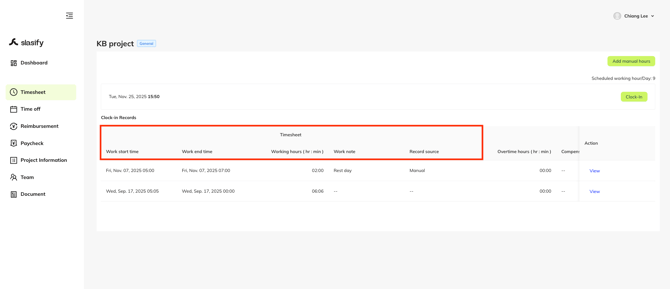
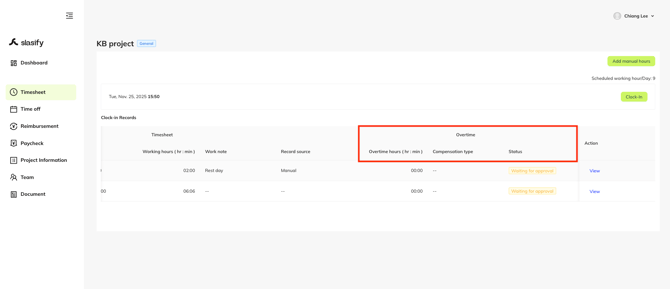
The timesheet list contains two major column groups: Timesheet and Overtime, plus an Action column.
A. Timesheet
1. Work Start Time
The timestamp indicating when the employee started work for that day or shift.
2. Work End Time
The timestamp indicating when the employee ended work for that day or shift.
3. Working Hours (hr:min)
Shows the total number of hours worked, automatically calculated from the start and end times.
4. Work Note
A note entered by the employee when clocking out.
This may include work details, remarks, or reasons for adjustments.
5. Record Source
Indicates how the timesheet record was created:
-
Clock – The record comes from the employee’s clock in/out action.
-
Manual – The record was manually submitted by the employee, such as a missed clock-in correction or manual work-hour entry.
B. Overtime
1. Overtime Hours (hr:min)
Displays the number of hours that qualify as overtime based on the company’s overtime rules.
2. Compensation Type
Specifies how the overtime hours will be compensated:
-
Overtime Pay – Overtime is compensated with additional wage.
-
Compensatory Leave – Overtime is converted to time-off credits.
3. Status
Shows the current status of the overtime application:
Examples:
-
Completed – The timesheet data has been finalized.
-
If employees need to apply for overtime, they may submit the overtime application.
-
-
Waiting for approval – Pending manager review.
-
Rejected – Application was not approved. Employees can resubmit this overtime and timesheet data.
-
Approved – Application was approved and finalized.
C. Action
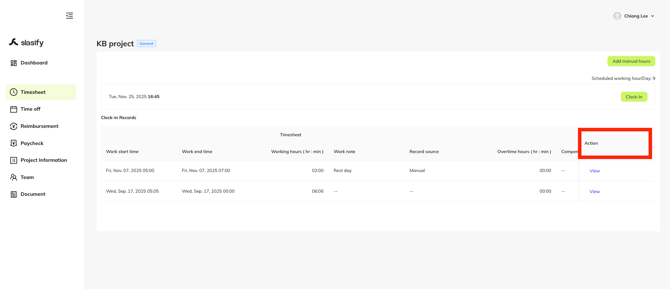
Clicking View opens the detailed timesheet record page, where managers can:
-
View complete details
-
Review the outcome of application
Clock In/Out and Overtime Application
This section explains how users clock out and how the system determines whether an overtime application is required based on the selected work note, daily scheduled hours, and employer-defined overtime buffer settings.
1. Starting the Clock-In/Out Process
When the user starts the work period:
-
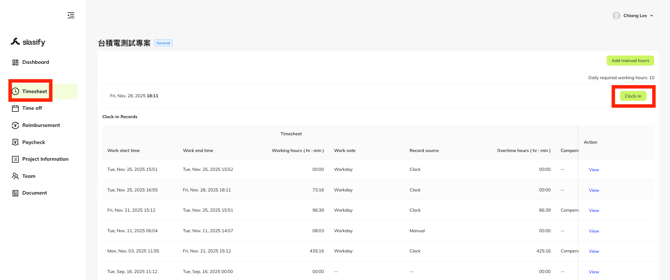
Go to the Timesheet page.
-
Click the Clock-in button on the upper-right corner.
-
After clicking, the button will become “Clock-Out” button
When the user finishes the work period:
-
Go to the Timesheet page.
-
Click the Clock-Out button on the upper-right corner.
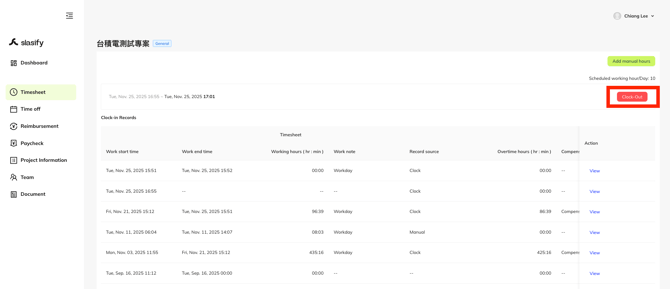
After clicking, the system opens the clock-out submission window, where the user must select a work note and, depending on the situation, may need to submit an overtime request.
2. Select Today’s Work Note
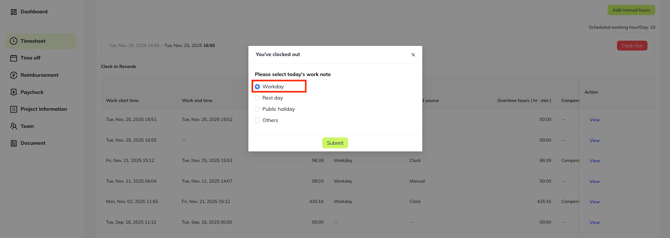
The system requires the user to select one of the following work notes:

-
Workday - This labels the entry as a regular work day.
-
Rest day - This labels the entry as hours worked on a rest day.
-
Public holiday - This labels the entry as hours worked on a Public Holiday.
-
Others - If the above options are not applicable for your entry, please select “Others.”
This selection affects whether overtime logic will be triggered.
3. Scenario A – No Overtime Required (Standard Condition)
If the user did not exceed the project’s scheduled daily working hours, the system simply asks for a work note.
When does this scenario occur?
-
Selected a Work Note as Others or Workday AND
Actual worked hours ≤ Daily required working hours + Employer-defined buffer time-
Actual worked hours is from Work Start Time to Work End Time
-
The employer can configure the daily required working hours and overtime buffer in the system.
-
If the worked hours stay within this buffer, the system will not consider it overtime.
-
Steps
-
Select Others or Workday.
-
No overtime block will appear.
-
Click Submit to complete the clock-out process.
4. Scenario B – Overtime Request Required or Optional
When certain conditions are met, the system displays the Overtime Request Block.
4.1 When does the Overtime Block appear?
The overtime block will be displayed under any of the following conditions:
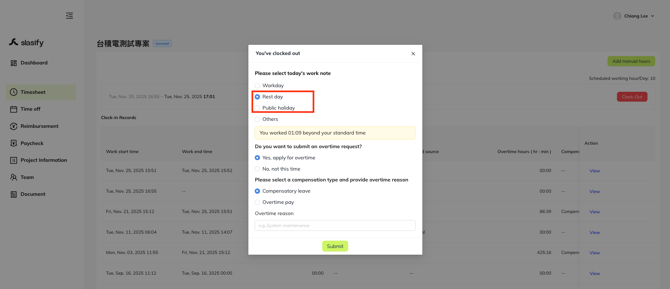
Condition 1 – Selected Rest Day or Public Holiday
-
User selects:
-
Rest day, or
-
Public holiday
-
→ Any work on these days automatically triggers overtime options as the employee has worked on days meant for rest.
Condition 2 – Worked beyond scheduled hours on a Workday
-
User selects Workday, AND
-
Actual worked hours > Daily required working hours + employer-defined buffer time
Example: Scheduled = 10 hours; employer buffer = 15 minutes
Only when worked hours > 10h 15m will the overtime block appear.
4.2 Overtime Block Content and Meaning
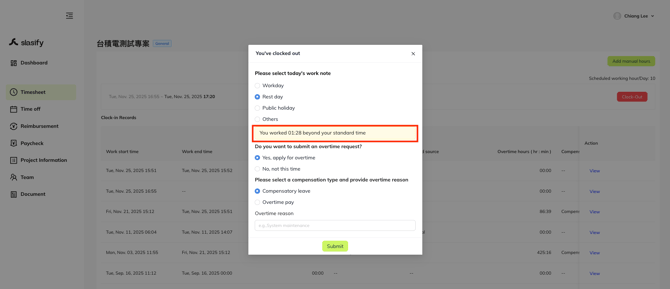
When triggered, the overtime block contains the following elements:
A. System notification
“You worked hh:mm beyond your standard time.”
Shows the amount of time exceeding the scheduled work hours.
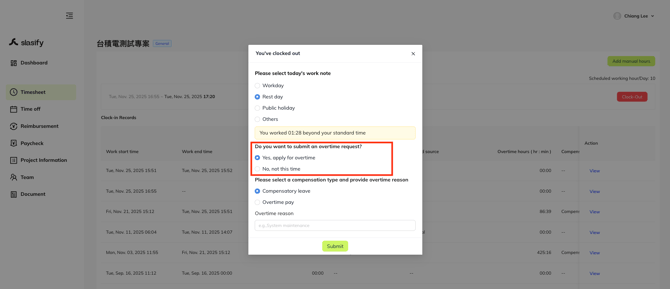
B. Overtime request question
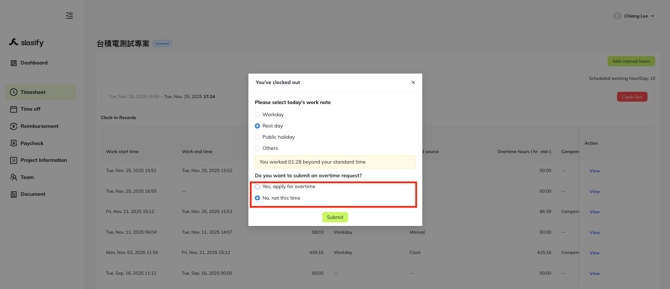
“Do you want to submit an overtime request?”
Options:
-
Yes, apply for overtime → Go to section C and answer the following question.
-
No, not this time → Click the submit and send the application without overtime.
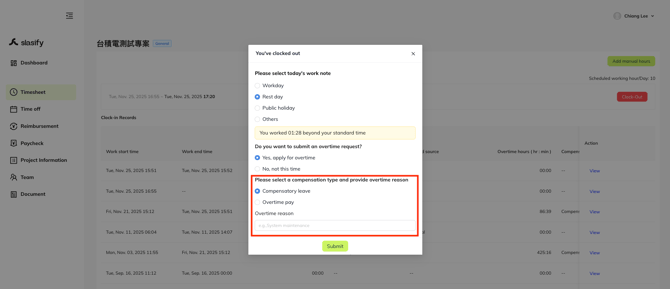
C. Compensation type and reason
If the user selects Yes, apply for overtime, additional fields appear:
1. Compensation Type
-
Compensatory Leave - Accrued leave hours to compensate for hours worked overtime.
-
Overtime Pay - Accrued payment to compensate for hours worked overtime.
2. Overtime Reason
A text field where the user must enter the explanation, such as:
-
“System maintenance”
-
“Urgent production support”
-
“Client deadline work”
5. Completing the Clock-Out & Overtime Process
If no overtime block appears
→ Simply click Submit to complete clock-out.
If overtime block appears
-
Review the overtime notification.
-
Choose whether to apply for overtime.
-
If No, click Submit.
-
If Yes, continue.
-
-
Select a compensation type.
-
Enter an overtime reason.
-
Click Submit to finalize the process.
Manual Working Hours Application
Employees can submit manual working hours when they forget to clock in/out, when system clocking is unavailable, or when they need to manually correct their working hours. This guide explains how to complete the manual hours form step-by-step.
1. Opening the Manual Working Hours Form
-
Navigate to the Timesheet page.
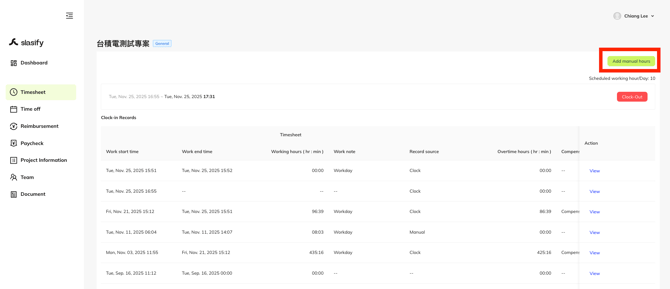
-
Click the Add manual hours button on the upper-right corner.
-
The Manual working hours form will appear.
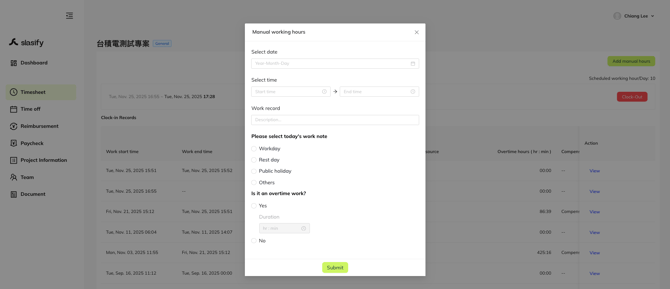
2. Step-by-Step Guide to Filling Out the Manual Working Hours Form
The form contains several required and optional fields based on the work situation.
Step 1 – Select Date
Choose the date for the manual work entry.
-
Click the date field.
-
Select the correct date from the calendar popup.
Step 2 – Select Time (Start & End Time)
Enter the period during which you worked manually.
-
Input Start time
-
Input End time
The system will calculate total working hours automatically after submission.
Step 3 – Enter Work Record (Description)
Provide a short description of the work performed.
Examples:
-
“Missed clock-out, correcting work hours.”
-
“Field visit, manual reporting.”
-
“System malfunction—manual entry required.”
Step 4 – Select Today’s Work Note
Choose the appropriate work type for that day:
-
Workday - This labels the entry as a regular work day.
-
Rest day - This labels the entry as hours worked on a rest day.
-
Public holiday - This labels the entry as hours worked on a Public Holiday.
-
Others - If the above options are not applicable for your entry, please select “Others.”
This selection affects whether overtime may be applicable.
Step 5 – Indicate Whether It Is Overtime Work
At the bottom of the form, the system asks:
“Is it an overtime work?”
You must select Yes or No.
- If you select “No”
→ No further overtime fields are required.
Continue directly to submission.
- If you select “Yes”
The system will ask for the duration of overtime.
Overtime Duration Field
Enter the overtime length in hours and minutes.
Examples:
-
01:00
-
02:30
Note: The system does not ask for compensation type or overtime reason in manual hours; only the duration is required.
Step 6 – Submit Manual Working Hours application
Once all required fields are completed:
-
Review all inputs to ensure accuracy.
-
Click the Submit button at the bottom.
-
The system will create:
-
a manual timesheet record, and
-
an overtime entry (if "Yes" was selected).
-
The entry will then proceed to the project manager for review and approval.
Resubmitting a Rejected Timesheet Record
When a submitted timesheet or overtime application is rejected by the project manager, the employee must review the rejection details and make corrections before resubmitting.
This guide explains the two-step process:
-
Reviewing the rejection details
-
Editing the timesheet and resubmitting
1. Review the Rejected Timesheet Record
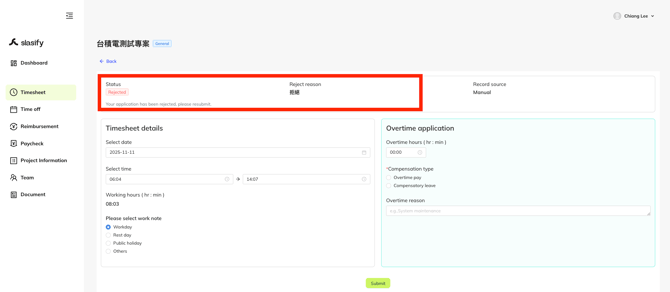
When a timesheet entry is rejected, opening the record will display a notification at the top of the page.
Information displayed in the rejection banner:
-
Status: Rejected
Indicates the application was not approved. -
Reject Reason
The manager’s explanation for the rejection (e.g., missing information, incorrect hours, unclear work note).
2. Edit the Timesheet and Resubmit
After reviewing the reason for rejection, scroll down to the editable form.
Both Timesheet details and Overtime application fields become available for correction.
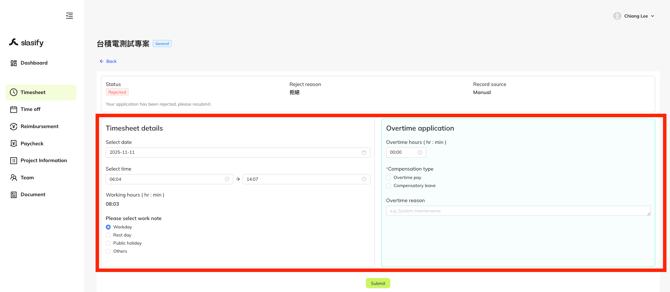
2.1 Edit Timesheet Details (Required)
You must correct or update the following required fields:
A. Select date
Confirm or adjust the date of the work session.
B. Select time
Update the Start time and End time if incorrect.
C. Work note
Choose the correct work note:
-
Workday
-
Rest day
-
Public holiday
-
Others
D. Working hours
This is automatically recalculated based on your time inputs.
2.2 Edit Overtime Application (Optional)
If overtime is not needed → leave fields unchanged or set Overtime hours to 00:00.
If overtime is needed → update the following:
A. Overtime hours (hr:min)
Specify the overtime duration.
B. Compensation type (Required if applying for overtime)
-
Overtime pay
-
Compensatory leave
C. Overtime reason
Provide a brief and clear explanation (e.g., “System maintenance”, “Urgent task completion”).
3. Submit the Corrected Application
Once all required corrections are made:
-
Review all details carefully.
-
Click the Submit button at the bottom of the page.
The corrected timesheet will be sent again to the manager for approval.
Thank you & stay well
Slasify Team
Last Updated: 2025.11.28 (v1.102.0)