![Slasify_Logo_Black 1.svg]](https://support.slasify.com/hubfs/Slasify_Logo_Black%201.svg)
After receiving the account activation notification from the Slasify team, please follow the steps below to complete your login and password setup.
- Confirm Your Account Information and Click the Login Link
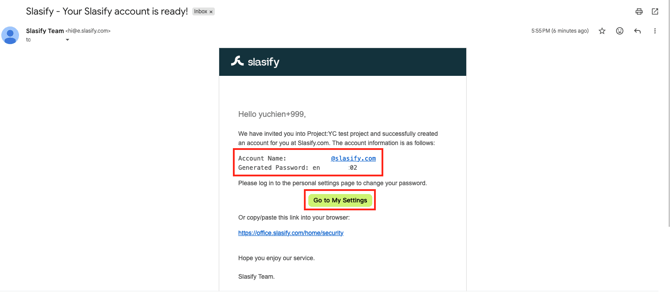 Once you receive the email with the subject line "Slasify - Your Slasify account is ready!", the email will display your Account Name and Generated Password (a system-generated random password). Take note of these credentials, then click the "Go to My Settings" button in the email to proceed to login.
 - Log In with Your Account Credentials
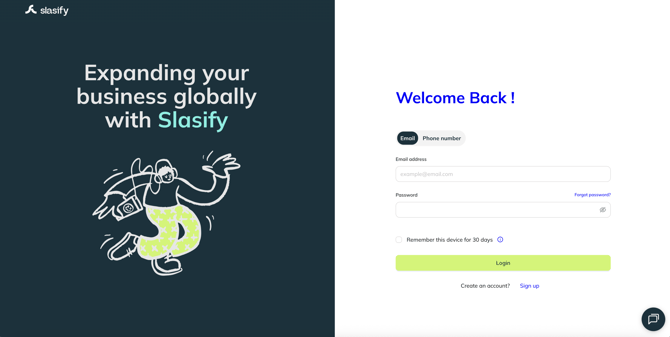 The Slasify login page will open. Enter your account name in the Email address field and the random password from the email in the Password field, then click the "Login" button.
 - Complete Two-Factor Authentication (2FA)
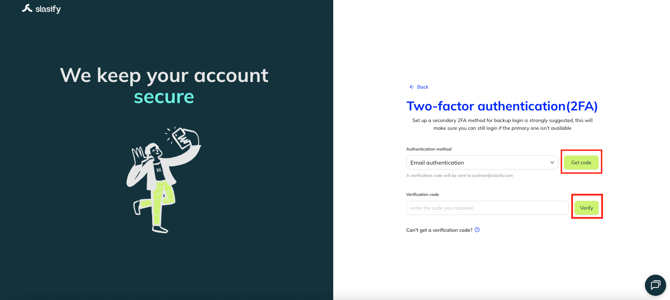 After logging in, you will be directed to the two-factor authentication page. Click the "Get code" button — a verification code will be sent to your email address. Once received, enter the code in the Verification code field, then click "Verify" to complete authentication and log in.
 - Navigate to the Settings Page
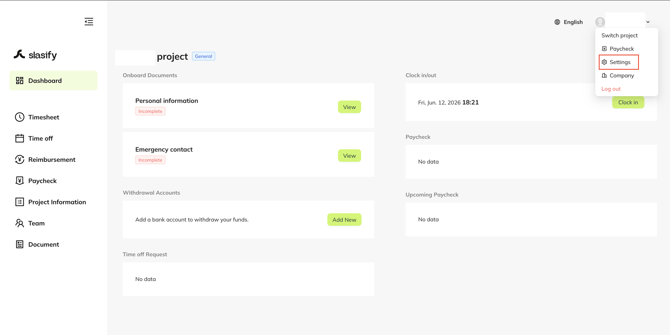 After logging in successfully, you will see the Dashboard of your assigned project. Click your account name in the top-right corner, then select "Settings" from the dropdown menu.
 - Change Your Password
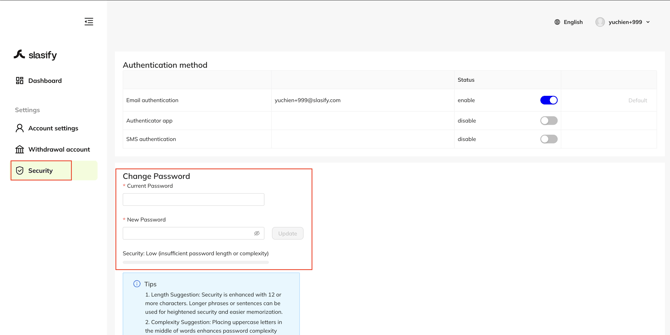 On the Settings page, click "Security" in the left-hand menu. Under the "Change Password" section:
- Current Password: Enter the random password from the email
- New Password: Enter the new password you wish to use
If you have any questions, please contact your Account Manager or Business Development Manager, or reach us by email at hi@slasify.com
Thank you, and we wish you all the best.
Slasify Team
Last Updated: 2026.06.12